
Last updated on January 27, 2026
How Can I View Company Logs?
Need a record of who changed what and when? Company Logs (called Company Audit Logs in the Reports section) is the audit trail for your account — every settings change Admins make is captured with a timestamp, the actor's name, and the details that changed. Useful when you're working with multiple Admins and want to understand how the account got to its current state.
How to Open Company Logs
- Sign in at app.vacationtracker.io with an Admin account.
- In the left-hand menu, expand Reports and click Reports.
- On the Reports landing page, click Company Audit Logs.
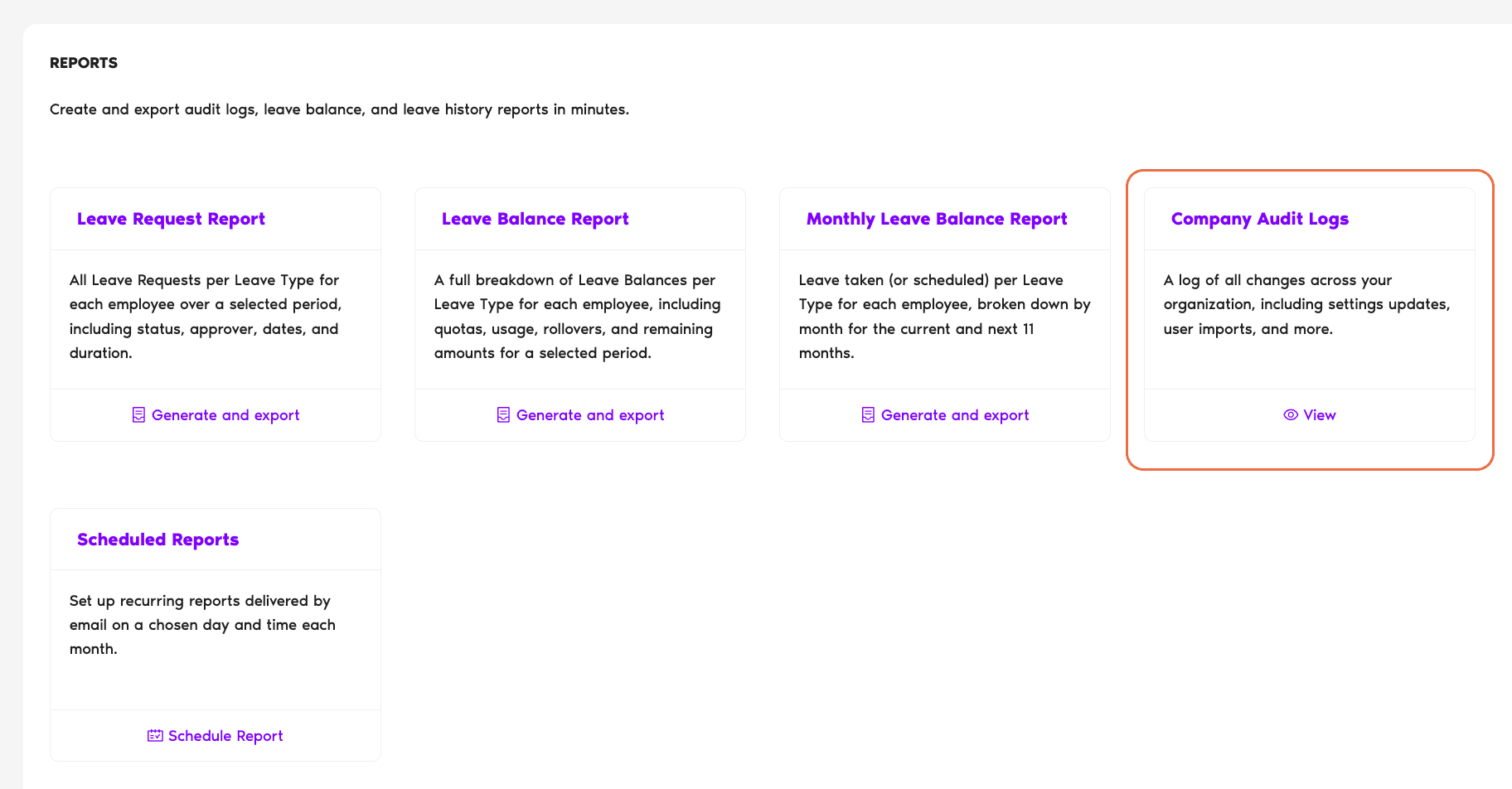
You'll land on the Company Audit Logs page, which lists every change ever recorded — newest first — across the categories that Admins control.
What's on the Page
Three controls sit across the top of the page, and the rest is the log itself.
Filter
A dropdown that defaults to All. Picking a category narrows the list to changes of that type only — useful when you know the area where the change happened.
Select date range
Two date pickers (Start date and End date) that bound which entries are shown. There's a small info icon next to the label — its tooltip reads, verbatim: "Date range can be one year at most." So you can scope to anywhere from a single day up to a 12-month window.
Time zone
Top-right of the page. Click the pencil icon next to the displayed time zone (e.g. "Asia/Calcutta") to open a searchable dropdown of GMT-offset zones — pick one and the timestamps on every entry will re-render in that zone. Handy if you and the User who made the change live in different time zones and you want to reconcile against their local clock.
Log entries
Each entry is a single row with three parts:
A Load more button at the bottom pulls in the next page of entries when you reach the end of the list.
Filter Categories
The Filter dropdown lets you narrow the log to one category. Click any below for what gets included in that view.
The default. Every change across every category, in one chronological feed.
Edits to the General Settings of the workspace — company name, the toggle that switches leave tracking between hours and days, the User end date setting, calculation rules, announcement preferences, and similar account-wide values.
Changes to a Leave Type itself — its name, its color, and whether it's active. Note: this category is about the type's own properties, not the policy that ties it to a Location.
 Book a Call